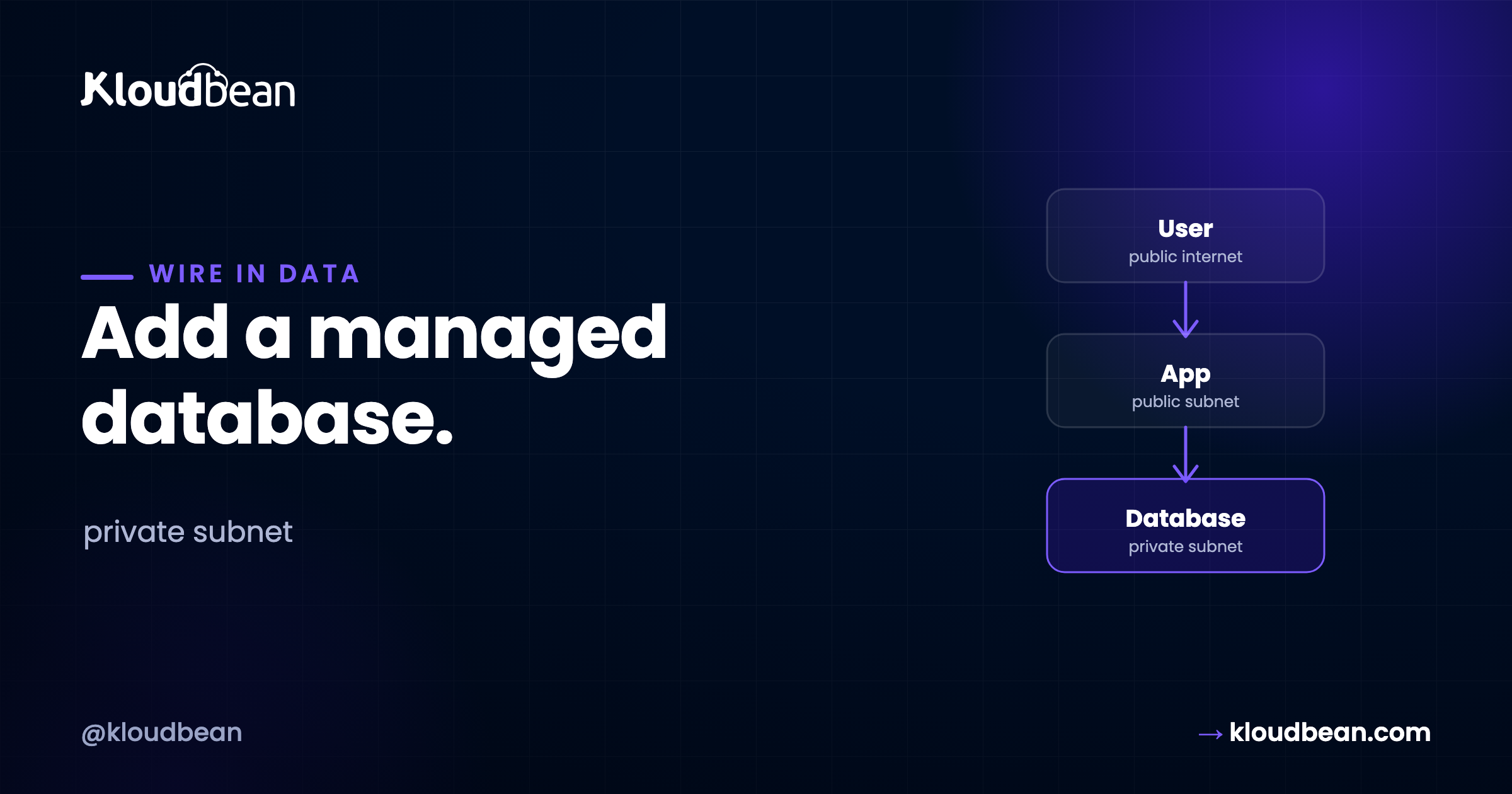
AI app builders like Lovable, Bolt.new, Cursor, Windsurf, Replit Agent, v0, ChatGPT, and Claude Code can generate a working app in an afternoon. What they don’t hand you is the piece every real app needs: a proper, persistent, production database. This guide shows you how to add a managed PostgreSQL or MySQL database to your app, connect it safely through environment variables, run your migrations, and keep it backed up — with copy-paste examples for Prisma, Drizzle, Django, Laravel, Rails, and more.
The short version
Launch a managed PostgreSQL or MySQL database next to your app, put the connection in a DATABASE_URL environment variable (never in code), run your framework’s migrate command (prisma migrate deploy, python manage.py migrate, php artisan migrate, rails db:migrate…), and verify with a real read and write. On Kloudbean the database is provisioned, secured on a private network, and backed up automatically.
Why AI-built apps need a real managed database
Most generated apps start with SQLite or local file storage because it’s zero-config and works instantly on your laptop. That’s perfect for building. It falls apart in production, for reasons that bite the moment you have real users:
- Redeploys wipe local data. On many platforms the filesystem is ephemeral — push a new version and the SQLite file (and everyone’s data) can vanish.
- One writer at a time. SQLite locks the whole file on writes, so concurrent users bottleneck quickly.
- No second server. A local file can’t be shared across multiple app instances, so you can’t scale out.
- Backups are on you. There’s no automatic, restorable backup of a loose file.
A managed PostgreSQL or MySQL database fixes all four: it persists independently of deploys, handles many concurrent users, can be reached by more than one app server, and is backed up for you. That’s the line between a prototype and something you can put in front of customers.
The architecture, in one picture
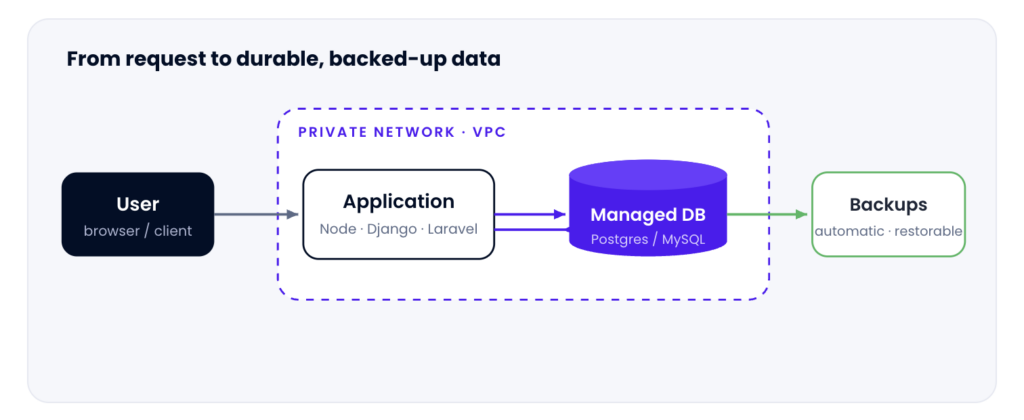
User → Application → Managed Database (on a private network) → automatic Backups.
Here’s the whole shape of what you’re building a request comes in, your application reads and writes to a managed database over a private network, and that database is backed up automatically
SQLite vs PostgreSQL vs MySQL: when to use each
SQLite isn’t “bad” — it’s the right tool for the wrong job here. Use it while you build; switch to a client-server database for production. The differences that matter:
| SQLite | PostgreSQL | MySQL | |
|---|---|---|---|
| Best for | Local dev, tests, prototypes | Production — most modern apps | Production — WordPress/PHP & general |
| Concurrency | One writer (file lock) | High (MVCC) | High |
| Survives redeploy | Only if the file persists (often lost) | Yes — independent, managed | Yes — independent, managed |
| Multiple app servers | No | Yes | Yes |
| JSON / rich types | Basic | Excellent (JSONB) | Good |
| Backups | Manual | Automatic (managed) | Automatic (managed) |
Rule of thumb: SQLite for development, PostgreSQL or MySQL for anything with real users. The move is usually painless because your ORM already speaks all three — you change a connection string and run migrations.
PostgreSQL or MySQL: which should you pick?
Both are mature, fast, and fully managed on Kloudbean, so you won’t “lose” either way. A quick decision guide:
| PostgreSQL | MySQL | |
|---|---|---|
| Pick it when | New app, no strong preference; rich data types, JSONB, analytics | Your stack expects it; WordPress/PHP; team knows it well |
| Default for | Most AI-generated apps and modern ORMs | PHP ecosystems and legacy apps |
| Reputation | Powerful, standards-strict | Fast, simple, everywhere |
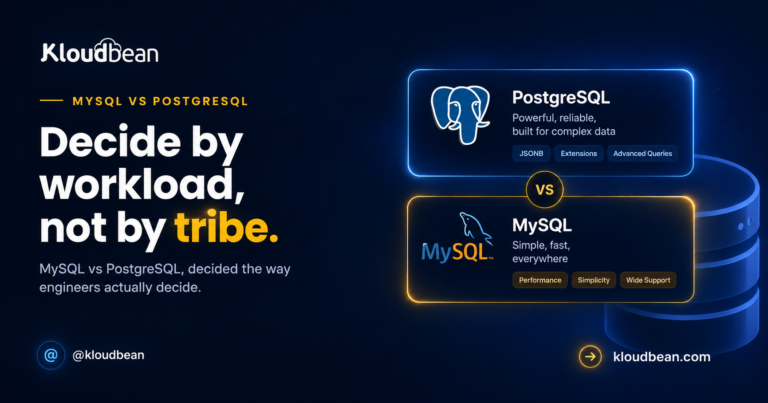
If nothing dictates the choice, take PostgreSQL — it’s what most vibe-coding tools generate against. If you want the deeper comparison, see MySQL vs PostgreSQL. Prefer a focused walkthrough? There’s managed PostgreSQL and managed MySQL.
Step 1: Launch a managed database
Open the DBS section and click Launch Database. Kloudbean runs six managed database engines — PostgreSQL, MySQL, MariaDB, Redis, Elasticsearch, and MongoDB — so pick your engine, name the database, and create it. It’s provisioned, secured, and backed up for you in a minute or two:
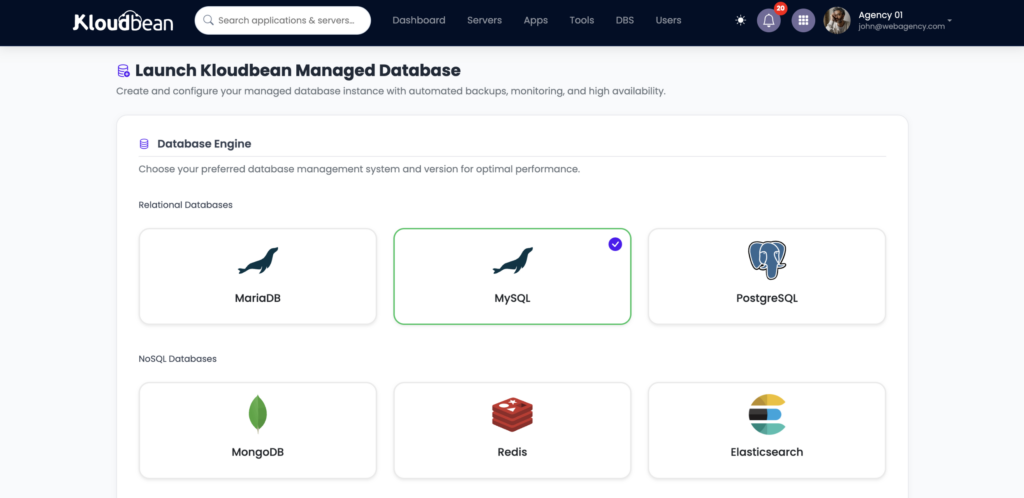
DBS → Launch Database: choose PostgreSQL or MySQL (six managed engines available), and it’s provisioned on your server.
You’ll get connection details — host, port, database name, username, and password. You’ll use these next, but never by pasting them into your code.
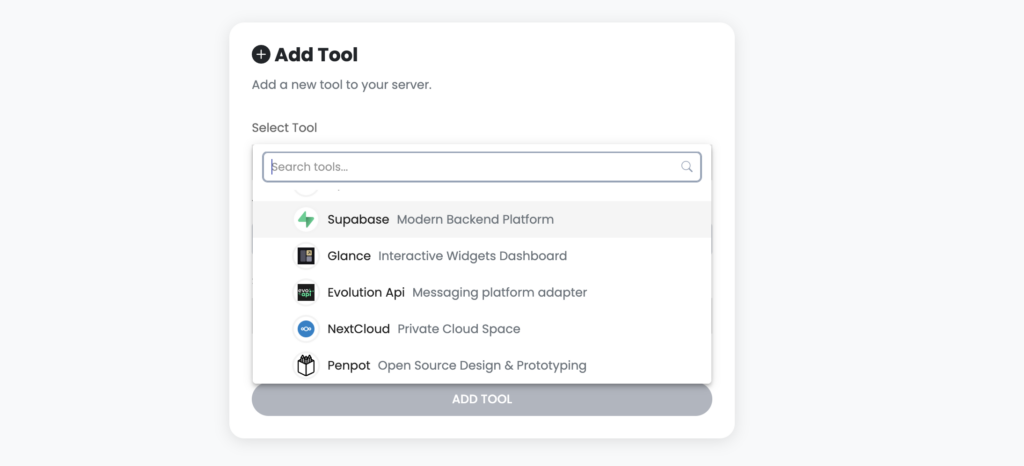
Coming from Supabase? Kloudbean is a Supabase alternative in two ways: migrate your Postgres data to a managed PostgreSQL you own (steps below), or launch Self-hosted managed Supabase itself as a one-click app. Either way the data lives on infrastructure you control.
Step 2: Connect through environment variables (with real examples)
Your app should read its connection from the environment, never from hard-coded values. Open Runtime Configuration → Environment Variables and add the connection — as a single DATABASE_URL, or as discrete fields:
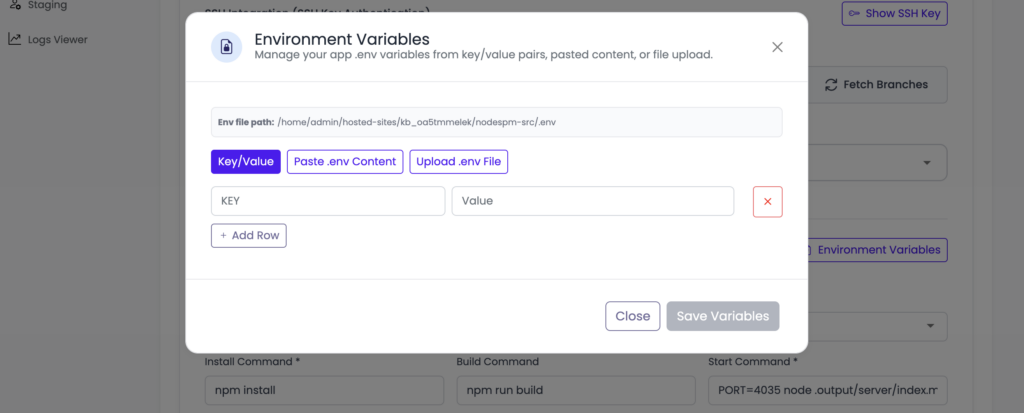
Here’s what those values look like. Use the Paste .env Content tab to add them all at once:
# PostgreSQL — single connection string
DATABASE_URL=postgresql://appuser:[email protected]:5432/appdb

# MySQL — single connection string
DATABASE_URL=mysql://appuser:[email protected]:3306/appdb

# Or discrete variables (many frameworks read these)
DB_HOST=10.0.0.5
DB_PORT=5432
DB_USERNAME=appuser
DB_PASSWORD=s3cret
DB_NAME=appdb
Because the credentials live in the environment, they never touch your Git history, and you can rotate them without a code change. Read the full pattern in environment variables done right.
Connect from your framework or ORM
Every popular framework reads the same environment variables. Here are the three most common shapes, then a full command table.
Prisma (Node / TypeScript)
// schema.prisma
datasource db {
  provider = "postgresql"   // or "mysql"
  url      = env("DATABASE_URL")
}
Express with node-postgres (pg)
import { Pool } from "pg";
const pool = new Pool({ connectionString: process.env.DATABASE_URL });
export const query = (text, params) => pool.query(text, params);
Django (Python)
# settings.py
import dj_database_url, os
DATABASES = {
    "default": dj_database_url.parse(os.environ["DATABASE_URL"]),
}
The pattern is identical everywhere: read DATABASE_URL (or the DB_* fields) from the environment, and let the ORM handle the rest. This table covers the connection variable and migration command for the frameworks people ask about most:
| Framework / ORM | Reads | Migrate command |
|---|---|---|
| Prisma | DATABASE_URL | npx prisma migrate deploy |
| Drizzle | DATABASE_URL | npx drizzle-kit migrate |
| Sequelize | env / config | npx sequelize-cli db:migrate |
| TypeORM | DataSource env | npm run typeorm migration:run |
| NestJS | DATABASE_URL | prisma migrate deploy / TypeORM run |
| Django | DATABASE_URL | python manage.py migrate |
| FastAPI (SQLAlchemy + Alembic) | DATABASE_URL | alembic upgrade head |
| Laravel | DB_* in .env | php artisan migrate --force |
| Rails (ActiveRecord) | DATABASE_URL | rails db:migrate |
| Express (node-pg-migrate) | DATABASE_URL | node-pg-migrate up |
Step 3: Run your migrations
A new database is empty — your schema has to be applied. Run your framework’s migrate command against the new DATABASE_URL:
# Node ORMs
npx prisma migrate deploy
npx drizzle-kit migrate

# Python
python manage.py migrate        # Django
alembic upgrade head            # FastAPI / SQLAlchemy

# PHP / Ruby
php artisan migrate --force     # Laravel
rails db:migrate                # Rails
Best practice: make migrations run automatically on deploy, so a schema change ships with the code that needs it. Add the migrate command to your build or start sequence and you’ll never forget it. If you’re wiring up Git deployments, that’s the natural place for it.
Step 4: Verify the connection
Redeploy so the app picks up the new environment variables, then exercise a real read and write — sign up a test user, create a record, reload to confirm it persisted. If it can’t connect, it’s almost always one of three things: a typo in the connection string, the wrong variable name (your ORM wants DATABASE_URL but you set DB_URL), or migrations haven’t run so the tables don’t exist. A database error in the logs is specific and easy to read.
Database security best practices
A database holds your most sensitive data, so treat these as non-negotiable:
- Never hard-code credentials. Connection strings live in environment variables, not in source.
- Never commit
.envfiles. Add.envto.gitignore; set values on the server instead. - Keep the database off the public internet. On Kloudbean the database sits on a private network (VPC), reachable by your app internally — not exposed to the world for scanners to find.
- Use least-privilege users. Your app’s database user should have only the permissions it needs, not superuser everywhere.
- Rotate passwords. Because the connection is an env var, rotating a password is a config change, not a code change.
- Enable and test backups. Automatic backups are on; confirm you can actually restore one before you need to.
Performance and scaling
You don’t need to tune anything on day one, but knowing the levers saves a confusing afternoon later:
- Connection pooling. Databases allow a finite number of connections. An always-on app server (as on Kloudbean) naturally reuses a pool, so this is far gentler than serverless. Most drivers pool by default; if you see “too many connections,” set a sensible pool size rather than opening connections ad hoc.
- Indexing. The single biggest win for most apps. Add indexes on the columns you filter and join on; a missing index turns a fast query slow as data grows.
- Query optimization. Use your database’s
EXPLAINto find slow queries, and avoid N+1 patterns your ORM can create. - Caching. Put a managed Redis in front of hot reads to take load off the database entirely.
- Sizing. Start small and resize the server vertically as you grow — more CPU and RAM is the simplest first scale step.
- Scaling reads. For read-heavy workloads, read replicas are the standard next pattern; plan for them as your traffic climbs.
Migrating an existing database (including from Supabase)
Already have data? Moving it is a standard export/import, then repoint the connection string:
# PostgreSQL (works for Supabase too — it's just Postgres)
pg_dump "$OLD_DATABASE_URL" > dump.sql
psql "$NEW_DATABASE_URL" < dump.sql

# MySQL
mysqldump -h OLD_HOST -u USER -p appdb > dump.sql
mysql -h NEW_HOST -u USER -p appdb < dump.sql
Then update DATABASE_URL to the new database and redeploy. Because Supabase is PostgreSQL underneath, a Supabase-to-managed-Postgres move is exactly the Postgres flow above — and Kloudbean’s free migration assistance can do the first one for you.
Supported frameworks
This managed-database approach works with anything that speaks Postgres or MySQL — which is essentially every modern framework:
- Python: Django, Flask, FastAPI
- Node / JS: Express, NestJS, Next.js, Nuxt, Astro
- PHP: Laravel, WordPress
- Ruby: Rails
If your app was generated by an AI builder, it almost certainly targets one of these — see the full guide to deploying an AI-built app to production for where the database step fits the overall flow.
How it fits the rest of your stack
A managed database is one piece of owning your whole stack. It sits beside your app, wired in through environment variables, and the rest follows: your background jobs and scheduled tasks operate on it, large files go to object storage instead of the database, hot reads are cached in Redis, and everything is covered by automatic backups behind free SSL. One dashboard, one server, one bill.
The honest limits
Kloudbean offers six managed database engines — PostgreSQL, MySQL, MariaDB, Redis, Elasticsearch, and MongoDB — on Linux servers. It isn’t a managed offering for every exotic datastore, and it isn’t for Windows-only database stacks. “Managed” means the platform provisions, secures (on a private network), and backs up the database, while you own the schema and the data and can export it anytime. For standard Postgres or MySQL — which is what almost every AI-built and modern web app uses — launching one beside your app is the simplest, most owned option there is.
A production database, one click away.
Managed PostgreSQL & MySQL with automatic backups, private networking, and free migration assistance — plus simple Git deployment on the same server. Start free at kloudbean.com; plans on pricing.
One-click databases · Automatic backups · Private networking · Free migration · Free trial
FAQ
How do I add a database to my Lovable, Bolt, or Cursor app?
Launch a managed PostgreSQL or MySQL from the DBS section, connect your app through a DATABASE_URL environment variable (never hard-coded), run your framework’s migrate command to create the tables, and verify with a test read and write. The database lives on your server, secured on a private network and backed up automatically.
PostgreSQL vs MySQL — which should I choose?
Both are excellent and fully managed. Pick PostgreSQL for a new app with no strong preference — it’s the default most AI tools generate against, with great JSON and rich types. Pick MySQL if your stack expects it (for example WordPress) or your team knows it well. For a typical app you won’t hit the limits of either.
Can I migrate from Supabase?
Yes. Supabase is PostgreSQL underneath, so you export with pg_dump and import into a managed PostgreSQL, then repoint DATABASE_URL. You can also launch managed Supabase itself as a one-click app on Kloudbean. Free migration assistance can handle the first move for you.
Does this work with Prisma?
Yes. Point Prisma’s datasource url at env("DATABASE_URL"), set that variable to your managed database’s connection string, and run npx prisma migrate deploy. Prisma works the same whether the database is Postgres or MySQL.
Does it support Laravel?
Yes. Set the DB_CONNECTION, DB_HOST, DB_PORT, DB_DATABASE, DB_USERNAME, and DB_PASSWORD variables in your environment, then run php artisan migrate --force. Laravel runs comfortably on managed MySQL or PostgreSQL.
How do I import an existing database?
Export it (pg_dump for PostgreSQL, mysqldump for MySQL), import the dump into the new managed database (psql/mysql), then update DATABASE_URL and redeploy. For large or production databases, free migration assistance can do it with minimal downtime.
Can I connect to the database remotely?
Your app connects over the private network by default, which is the secure setup. For admin access from your own machine (say, a GUI client), you tunnel in through the server rather than exposing the database to the public internet — keeping it off the open web is the whole point.
Can multiple apps share one database?
Yes. Several apps on the same server can connect to one managed database — point each app’s DATABASE_URL at it. For isolation, many teams give each app its own database or its own least-privilege user on a shared instance.
How do backups work, and can I restore them?
Managed databases are backed up automatically, and you can restore from a backup when you need to. Ownership stays yours — you can also export the data anytime. Test a restore before you depend on it, so you know your recovery path works.
Do I have to run migrations?
Yes, unless you import an existing database. A new database has no tables, so run your ORM’s migrate command (prisma migrate deploy, python manage.py migrate, php artisan migrate, rails db:migrate) — ideally automatically on deploy so schema changes ship with the code.
By Kloudbean · Managed multi-cloud hosting. Build. Deploy. Scale — Faster Than Ever.