The number one mistake people make when they self-host GitLab isn’t a bad config or a botched install. It’s memory. They drop GitLab on a tiny 1 GB or 2 GB box to save a few dollars, then wonder why the UI hangs, pipelines stall, and the whole thing feels broken. It isn’t broken. It’s starving.
So this guide leads with the part that actually decides whether your self-hosted GitLab is a joy or a headache: how much server it needs, and why. Get that right and everything else is easy.
GitLab bundles a lot of services into one app, which makes it genuinely RAM-hungry. Treat 4 GB as the floor for a small team and 8 GB as comfortable; its own docs recommend more as you grow. Self-host it when you want to own your source and CI or dodge per-seat pricing, size the server properly, and give CI runners their own room.
Why self-host GitLab at all
GitLab sells two things: the software and the hosting of it. The software has a free self-managed tier you can run forever. The per-seat pricing lives on their cloud. So the real question isn’t “is GitLab expensive,” it’s “do I want to run it myself on one server, or pay per person every month.” If you haven’t settled on a platform yet, that same question is what usually decides GitLab against GitHub for a team, because only one of them ships a free self-managed edition.
Good reasons to run it yourself:
- Per-seat pricing stops scaling with headcount. A self-managed server costs the same whether five people push code or fifty. For a growing team, that flip pays off fast.
- You own the source and its history. For a lot of companies the repository is the company. Keeping it on infrastructure you control is a plain business decision, not paranoia.
- Data residency and compliance. Self-hosting lets you keep code, issues, and CI logs in a region and an account you choose.
- One place for everything. If you already run apps on a server, putting Git, CI, and your registry alongside them is tidy.
And who should skip it? If you’re a solo dev or a pair, GitLab.com’s free tier is generous and running a server for two people is effort you don’t need. If you never want to think about infrastructure, stay on their cloud. Both choices are fine. Only one stops billing you per person.
What’s actually inside GitLab (and why it’s heavy)
People picture GitLab as “a Git server with a nice UI.” It’s far more than that, and understanding the pieces explains the memory appetite. A single GitLab install quietly runs a stack of cooperating services:
The good news: the standard GitLab package (the “Omnibus” install) wires all of that together for you. You don’t assemble six services by hand. The trade for that convenience is that they all want RAM at the same time.
The honest floor: how much RAM GitLab needs
Here’s the number to burn into memory. GitLab wants at least 4 GB of RAM as a realistic floor for a small team, and it’s genuinely comfortable at 8 GB. GitLab’s own documentation recommends more as your user count climbs. Give it 1 GB or 2 GB and it will crawl, then crash.
What “starving it” actually looks like, because the symptoms are specific and worth recognizing:
- The Linux OOM killer starts killing GitLab processes when memory runs out. Puma (the web server) or Sidekiq (the job runner) get taken down mid-request.
- Your reverse proxy returns 502 Bad Gateway because the app behind it just died.
- Pipelines queue up and never seem to start, since Sidekiq can’t keep up.
- The web UI loads at a crawl, or times out on a big merge request.
None of that is a GitLab bug. It’s a box that’s too small for the workload. I’ll say it flatly: this is the one place where being frugal backfires. Every other cost in self-hosting is forgiving. Memory isn’t. Size for 8 GB if you possibly can, and add swap on top so a brief spike doesn’t trigger the OOM killer.
Sizing it by team size
A rough guide, and it errs toward giving GitLab room rather than cutting it close:
| Your situation | RAM to aim for | Notes |
|---|---|---|
| Kicking the tires, 1 to 3 people | 4 GB + swap | The floor. Fine for light use, light CI. |
| Small team, real daily use | 8 GB | The comfortable default. Pick this if unsure. |
| Busy team, heavy pipelines | 8 GB app box + a separate runner box | Keep builds off the main server. |
| Larger org | 16 GB and up, split services | Follow GitLab’s reference architectures. |
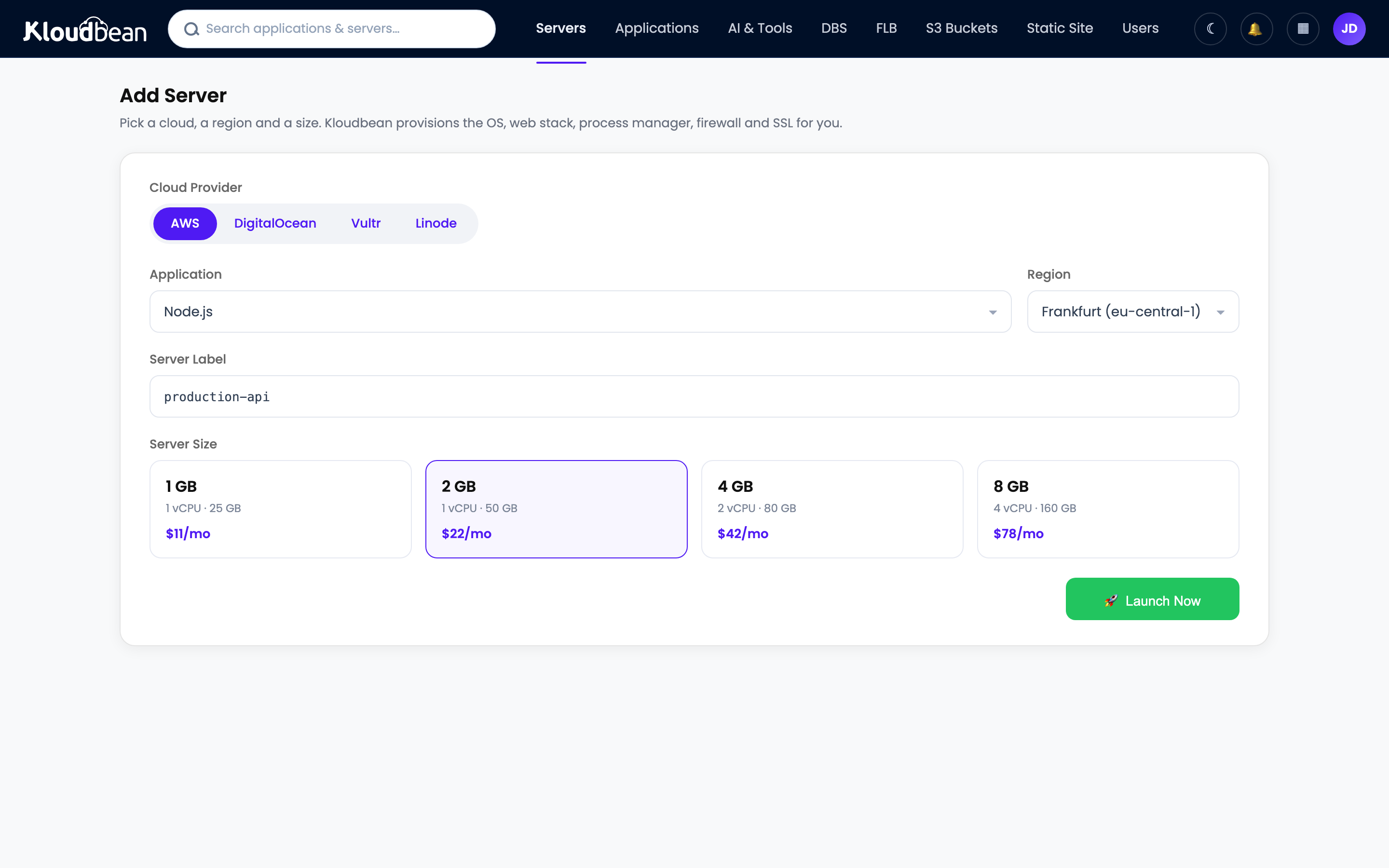
On a managed platform you choose that size up front when you add the server: a provider, a region near your team, and a size with headroom.
CI runners need their own room
This is the second thing people forget, and it’s related to the first. Your pipelines run on runners, and a runner burns real CPU and memory for the length of every job. Put the runner on the same 8 GB box as GitLab, then fire a heavy build, and the two fight for the same memory. The UI goes sluggish exactly when a build is running, which feels random until you spot the pattern.
The fix is boring and effective: give runners their own space. Add a small second server dedicated to CI, or size the main box larger if your pipelines are genuinely light. If you’re already running several apps across servers, a dedicated runner box slots right in. A GitLab that’s snappy in the UI but stalls every build is not the win you were after.
The setup, right-sized
You don’t need a wall of commands. The shape is short:
- Launch a server with 8 GB of RAM in the region nearest your team.
- Install GitLab from its official Omnibus package. A managed server gives you a real Linux box with root, so the standard install runs exactly as GitLab documents it.
- Point your domain at the server and turn on free SSL, so you get
git.yourcompany.comwith the padlock. If DNS and certificates aren’t your favorite chore, our guide to a custom domain and SSL walks it through. - Register a runner for CI, ideally pointed at its own box.
That’s a morning, not a project. The OS, the web stack, the firewall, and SSL are handled for you; you’re installing one well-packaged app on a box you sized correctly.
What’s managed, and what’s yours
“Managed” means different things in different places, so let’s be precise. The platform keeps the server healthy: the operating system, the web stack, the firewall, SSL, and server-level backups. You own the GitLab application: running its version upgrades when a new release ships, and making sure GitLab’s own backups (repos plus its database) are running.
Managed hosting removes the sysadmin work around the box. It doesn’t press the “upgrade GitLab” button for you, and GitLab’s built-in backup task is yours to schedule. Keep both running and you’re in good shape. Worth noting: this is Linux hosting, which is exactly what GitLab runs on. It’s your install on your server, not GitLab’s own SaaS with a support desk attached. Pair GitLab’s backup task with the platform’s server-level backups for two layers of safety.
Already on GitLab.com? Moving your data across
If you’re migrating rather than starting fresh, GitLab makes it clean because both ends run the same software. It has a built-in export and import: you export your groups and projects from GitLab.com, then import them into your self-managed instance. Repositories, issues, merge requests, and history come along. There’s no proprietary format to untangle. It’s GitLab to GitLab, just landing on a server that’s now yours.
For a handful of projects it’s a short job. For a large org, do it in batches and keep GitLab.com live until you’ve confirmed everything landed. Point your team at the new domain once it’s verified, then retire the old seats. And if you’d rather keep CI on your own runners from day one, our take on auto-deploy pipelines from Git is worth a read alongside GitLab’s own CI.
The cost, side by side
Numbers depend on team size and the plan you’d otherwise buy, so treat these as shape, not quotes:
| Scenario | GitLab.com (paid tier) | Self-hosted on one server |
|---|---|---|
| Billing basis | Per user, per month | Flat, per server |
| 10 developers | 10 seats | One 8 GB server |
| Add the 11th dev | +1 more seat | No change |
| Who owns the data | GitLab | You |
| Who runs upgrades | GitLab | You |
The trade is clean: you take on running the app, and in return the bill stops scaling with headcount and your code lives on infrastructure you control.
The verdict
GitLab is absolutely worth self-hosting when you want control of your source and CI or you’re feeling the per-seat pinch. Just don’t cheap out on memory. Size the server at 8 GB, give CI its own room, keep GitLab’s backups running, and it’ll feel every bit as fast as the hosted version, on a box that’s yours.
Curious what else earns its keep on your own server? Our best self-hosted tools roundup covers the neighbors, and if files are next on your list, self-hosting Nextcloud is a natural companion.
Own the repo, not the per-seat bill.
Spin up a right-sized server for GitLab at kloudbean.com. Pick 8 GB, a region near your team, and free SSL. Start on a free trial and scale up as you grow. See plans on pricing.
7 clouds · Right-size the RAM · Free SSL · Server-level backups · Free trial
FAQ
Is self-hosting GitLab free?
The software is. GitLab’s free self-managed tier costs nothing to run, and your only cost is the server it lives on. Paid self-managed tiers (Premium and Ultimate) add per-user licensing, but the free tier covers what most small teams need.
How much RAM does self-hosted GitLab need?
Treat 4 GB as the floor for a small team and 8 GB as comfortable, with more as your user count grows. Under-size it to 1 or 2 GB and GitLab becomes slow or unstable, so this is the single most important choice you’ll make.
Why is my self-hosted GitLab so slow?
Almost always not enough memory. When RAM runs out, the OOM killer takes down Puma or Sidekiq, your proxy returns 502 errors, and pipelines stall. The fix is to move to an 8 GB server (with swap), and to give CI runners their own box so builds don’t starve the web UI.
Do I need a separate database for GitLab?
Not to start. GitLab’s Omnibus package bundles PostgreSQL, so a basic install includes the database. Larger setups sometimes move Postgres to a dedicated server for headroom, but you don’t have to begin there.
What about CI/CD runners?
Runners consume real CPU and memory while jobs run. For anything beyond light pipelines, give them their own server so builds don’t slow the main GitLab instance. Running heavy CI on the same box as the app is the classic self-host performance trap.
Who handles GitLab upgrades and backups?
You do. That’s the part you own when you self-host. Managed hosting keeps the underlying server, SSL, and server-level backups healthy, but running GitLab’s version upgrades and scheduling its repo and database backups is your responsibility.
Can I migrate from GitLab.com to a self-managed instance?
Yes. GitLab has built-in export and import for groups and projects, and because both ends run the same software, repositories, issues, merge requests, and history come across cleanly. Migrate in batches for a large org and keep GitLab.com live until you’ve verified the import.
Does self-hosting GitLab save money versus per-seat pricing?
For a growing team, usually yes. A flat server cost doesn’t rise when you add developers, so past a handful of seats the math tilts toward self-hosting. For one or two people, GitLab.com’s free tier is hard to beat and not worth replacing with a server.
Is a self-hosted GitLab secure enough for private code?
Yes, with the basics in place: HTTPS on your domain, the server firewalled, access locked down to trusted IPs, and GitLab’s backups running. Managed hosting keeps the OS patched and the firewall on, and limiting who can reach the box keeps its exposure small.
Kloudbean · Right-size the box, own the pipeline.