Count your logins. If you run an agency, the number is embarrassing — a frontend host for the Next.js builds, a WordPress host for the brochure sites, something metered for the one client whose “quick landing page” quietly became a booking system, plus a database provider you forgot you were paying for. Every project brought its own dashboard, its own quota, and its own renewal date, and now nobody on the team can say what the monthly infrastructure bill actually is.
There’s a calmer way to run this, and it’s older than most of the platforms charging you: put the client work on servers you control, and let something else deal with keeping those servers healthy. One well-sized managed box can comfortably carry a couple of dozen small-to-medium client sites and apps. Here’s how that’s actually done, where it bites, and how to set it up without becoming a part-time sysadmin.
Why one server (and when it’s the wrong call)
The pitch for consolidation isn’t “cram everything on to save $5.” It’s focus. One machine means one place to patch, one backup policy, one set of SSL certificates renewing on their own, and one invoice you can explain to your accountant. When a client calls, you’re not hunting through five vendors to find where their site even lives.
It’s the wrong call in three situations, and it’s worth being honest about them up front:
- One client dwarfs the rest. If a single app eats most of the CPU or memory, it shouldn’t share a box with fifteen small sites. Give it its own server.
- A client has hard isolation or compliance needs. Regulated data, a security questionnaire with teeth, a client who contractually can’t share hardware — that’s a dedicated environment, full stop.
- Blast radius you can’t accept. Everything on one box means a bad kernel bug, a runaway process, or a fat-fingered restore can touch every client at once. For most agencies that’s manageable with good backups. For some client mixes it isn’t.
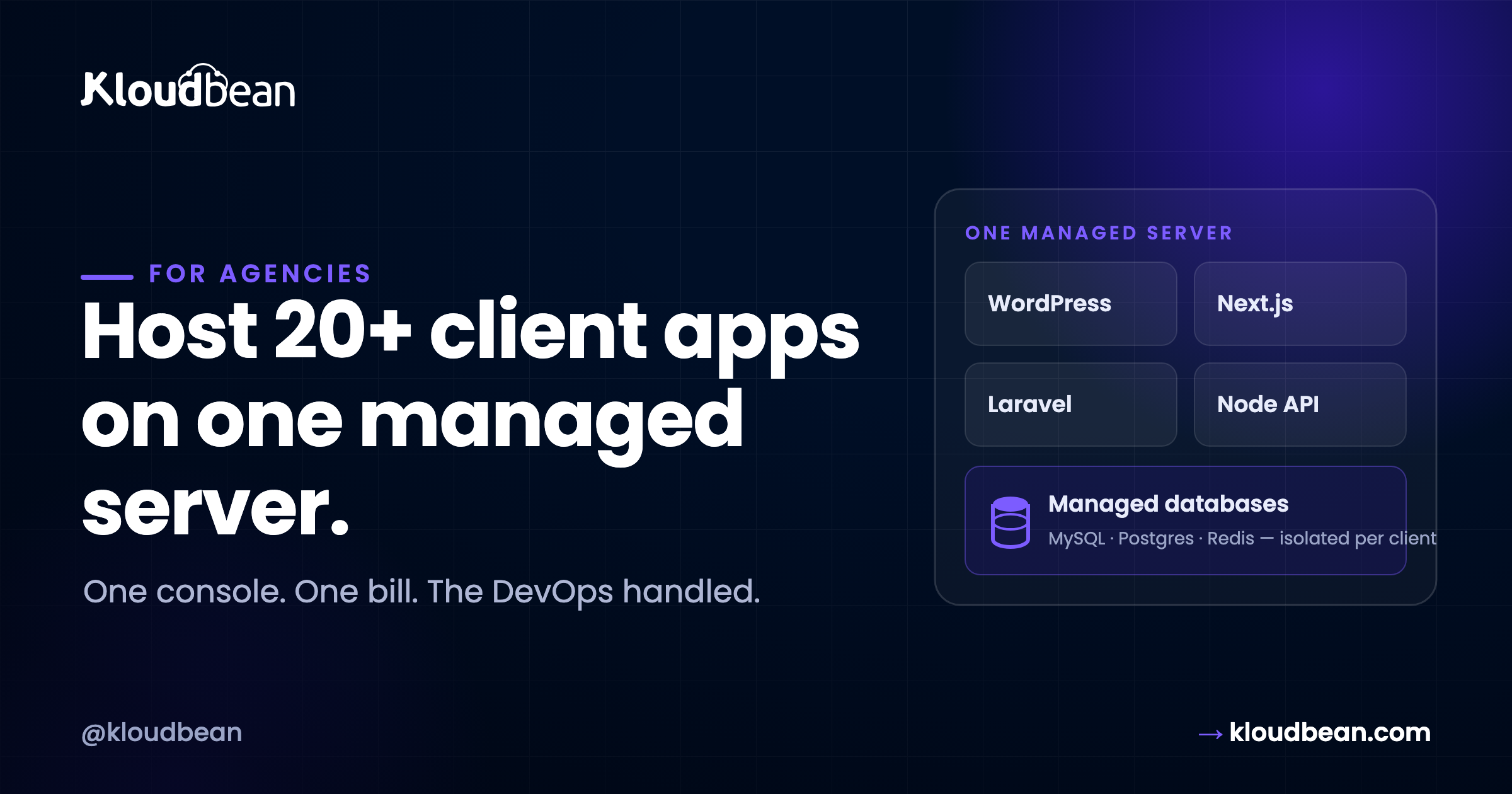
For the other 90% of the book — marketing sites, small SaaS, internal tools, WordPress, a handful of Node and Laravel apps — one server is the sensible default.
What “20+ apps on one box” actually looks like
The trick is that they don’t share anything they shouldn’t. “Multi-tenant on one server” done properly means each client is walled off from the others, even though they run on the same hardware.
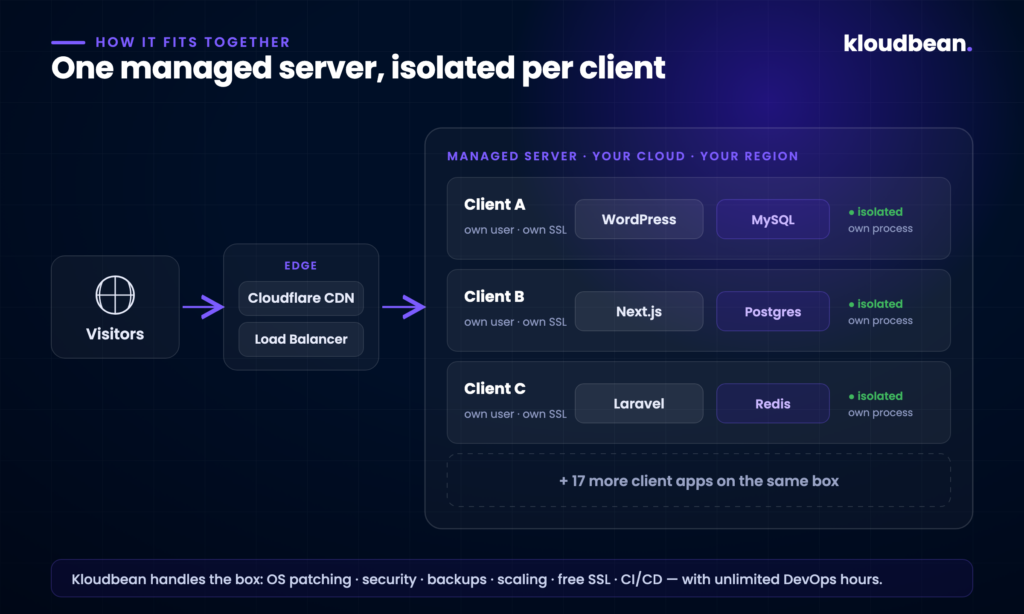
Concretely, each client app gets:
- Its own system user and web root. Client B’s PHP can’t read Client A’s files. This is the single most important line of defense, and it’s boring on purpose.
- Its own process or pool. WordPress sites run in their own PHP-FPM pools; Node and Next apps run as their own managed processes; a Laravel app has its own queue workers. If one hangs, it doesn’t take the neighbors down.
- Its own database and credentials. A separate MySQL, Postgres, or Redis per client — never one shared database with everyone’s tables in it.
- Its own domain and SSL, each terminating its own certificate, renewed automatically.
In front of all of it sits a CDN and a load balancer, so traffic is cached and spread before it ever touches the origin. The apps themselves can be a total mix — WordPress next to Next.js next to a Django API — because underneath it’s just a Linux server running Nginx, Apache, or OpenLiteSpeed with the runtimes installed. That’s the part people miss: “one server, many apps” doesn’t mean everything has to be the same stack. It rarely is.
The four things that will bite you
Anyone who’s actually run a shared box has scars. Here are the four that matter, and how to keep them from becoming a 2 a.m. problem.
Noisy neighbor. One client’s traffic spike or memory leak starves everyone else. The fix is headroom and limits: size the server with room to spare, cap per-app resources, and keep an eye on which client is trending up. When one app consistently needs more than its share, that’s your signal to move it — not to buy a bigger everything.
Blast radius. Because they share a kernel, a server-level failure is a shared failure. The insurance is backups you’ve actually tested restoring, plus not putting all your highest-value clients on the same machine. Spread the important ones.
Backups and restores, per client. Aggregate backups are useless when one client deletes a page and wants just their site rolled back to Tuesday. You want backups you can restore at the individual app and database level, not just a whole-server snapshot.
Deploys without collateral damage. Shipping an update for Client C should never risk Client A’s uptime. Per-app processes and a real CI/CD pipeline handle this — you deploy one app, the rest never notice. Zero-downtime deploys make it seamless, though that’s a feature you step up to as the book grows, not something you need on day one.
A rough rule of thumb for capacity
There’s no honest single number for “apps per server,” and anyone who quotes you one is guessing. It depends entirely on what the apps do.
Static sites and cached WordPress brochure sites are featherweights — a modest server holds a lot of them. A busy Laravel app with background jobs, or a Node API doing real work, is a different animal, and a handful of those can fill the same box. The practical approach: watch memory first (it’s usually what runs out), then CPU and disk I/O, keep 25–30% headroom for spikes, and let the heaviest client graduate to its own server when it earns it. Twenty-plus light-to-moderate sites on one properly sized machine is realistic. Twenty heavyweight apps is not — and that’s fine, because you’ll split those out anyway.
Where a managed platform earns its keep
You can absolutely do all of this on a raw VPS. Plenty of agencies start there. What ends the honeymoon is the ops: kernel patches, failed SSL renewals at midnight, a security incident you find out about late, the backup script that silently stopped running in March. That work doesn’t bill, and it doesn’t scale with your team.
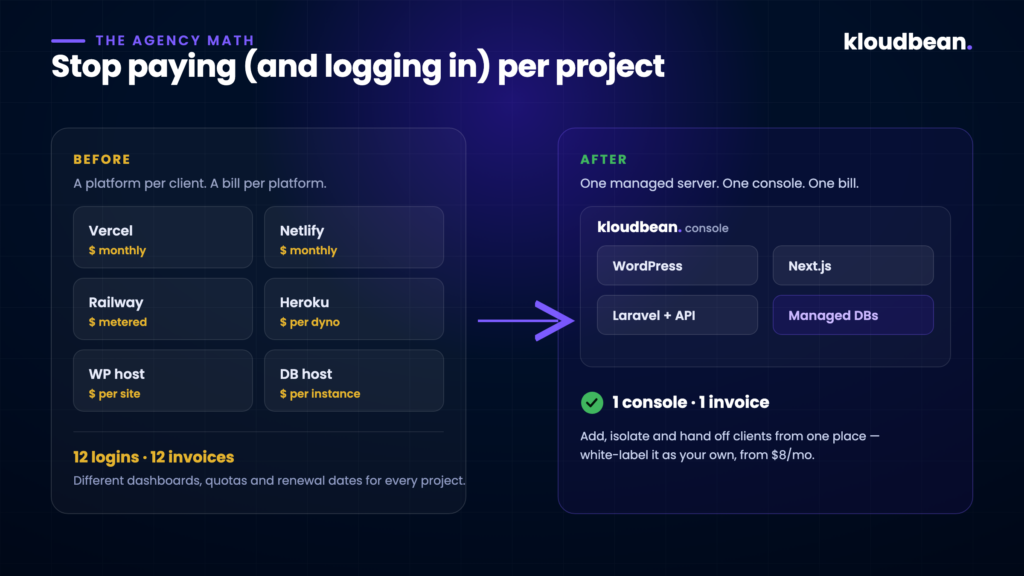
This is the gap Kloudbean is built for — managed cloud hosting used by 1,000+ businesses across 30+ countries. You pick the cloud (AWS, Google Cloud, DigitalOcean, Vultr, Linode, Lightsail, or UpCloud) and the region, and you run your whole client book on servers you own, from one console:
- The server is managed for you — security hardening, OS patching, monitoring, caching, and free SSL on every site, backed by unlimited DevOps support hours and 24/7 human help that answers in about two minutes.
- Any stack, side by side — WordPress, Next.js, Vue, Laravel, Django, Node, static — plus 9+ managed databases (MySQL, MariaDB, Postgres, MongoDB, Redis, and more) running right next to the apps.
- Multi-cloud load balancing, S3-compatible object storage, and built-in CI/CD, so adding, isolating, and shipping client apps is a few clicks rather than an afternoon.
- One migration done for you free on the base plan, so moving the first clients over isn’t a weekend project.
For agencies, the quiet win is white-labeling: deliver all of this under your own brand, so hosting becomes recurring revenue instead of a cost you absorb.
On tiers, be realistic about where you are. The Standard plan starts at $8/moand is where most agencies begin — it already includes the managed server, free SSL, managed databases, CI/CD, and multi-cloud load balancing. As the book grows and clients want daily automated backups, advanced caching, auto-scaling, and zero-downtime deploys, that’s the Premium step up (it also bundles BitNinja Pro security). When you’re running mission-critical work and need unlimited applications, a dedicated DevOps engineer, a 99.9% uptime SLA, and a private VPC, that’s Enterprise (from $7,500/mo). Match the client to the tier instead of over-buying on day one.
Setting it up on Kloudbean
Here’s the actual click-path, agency edition — one server, many isolated clients. None of it needs a DevOps hire.
1. Launch one shared server
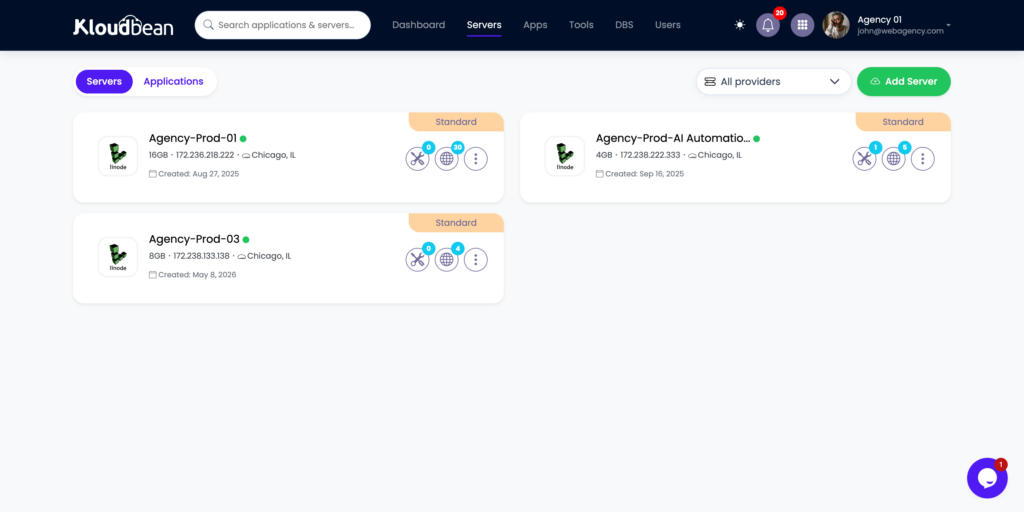
From the dashboard, click Add Server. On the provision page, pick your Cloud Provider and the datacenter nearest the bulk of your clients, choose a first Application (say WordPress or Node.js), give the server a name you’ll recognize (agency-prod-01), and choose a server size with real headroom — this box will carry several apps, so don’t under-buy. Hit Launch Now; it provisions in about five minutes.
2. Add each client as its own application
This is the step that makes the whole model work, and it’s a first-class feature, not a workaround: go to Applications → Add Application and add each client’s app to the same server. WordPress for one, a Next.js build for another, a Laravel API for a third — mixed stacks are fine. Each app you add lands in its own isolated space with its own system user and configuration, so no client can read or crash another.
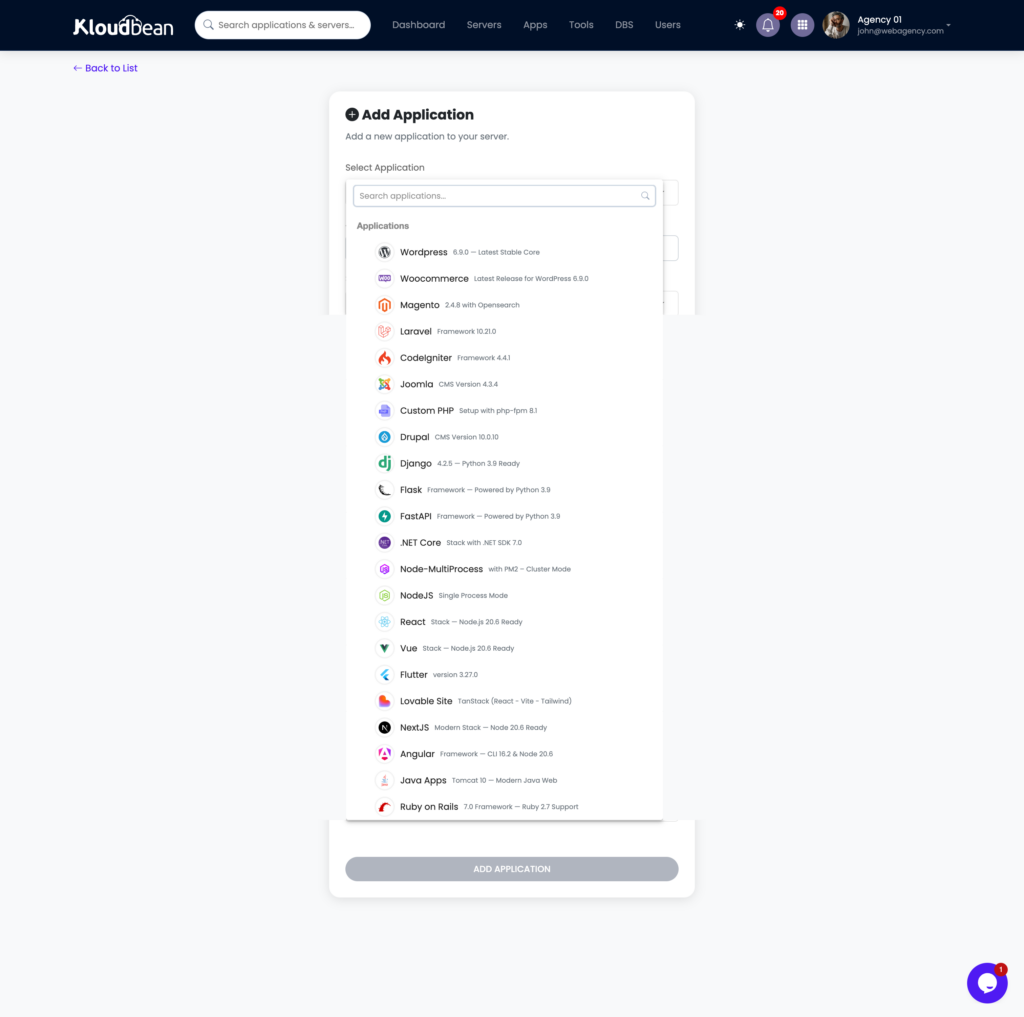
The Applications → Add Application screen (choosing a framework to add to an existing server).
3. Give each client its own database
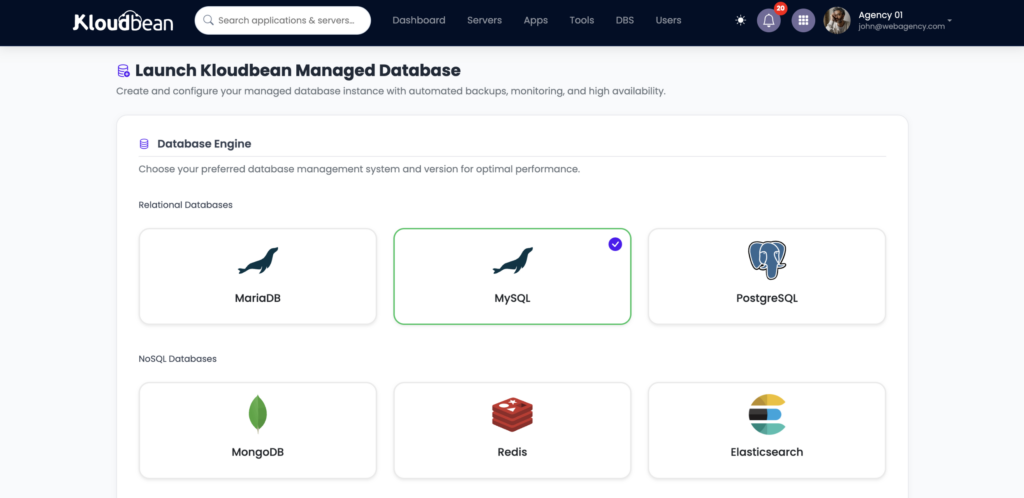
From Managed database / DBS → Launch Database, spin up a Postgres or MySQL instance per client instead of sharing one, and wire the credentials into that app’s variables under Runtime Configuration → Environment Variables. One client’s data is never sitting in another’s database.
4. Deploy each app from Git
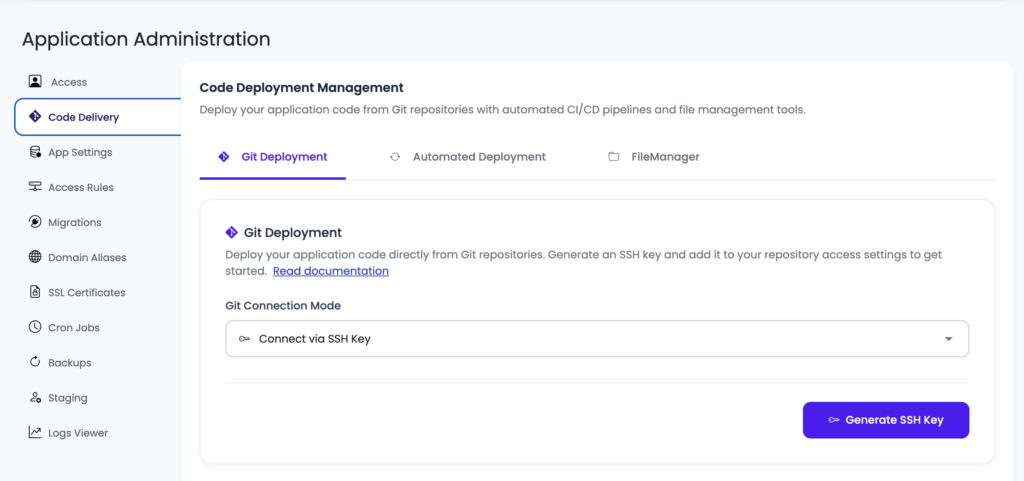
For every client app, open Code Delivery → Git Deployment, connect the repo, pick the branch, and Pull & Deploy. Because each app deploys independently, shipping an update for Client C never risks Client A’s uptime. Switch on automated deployment per app and pushes go live on their own. (If a client’s app was built with an AI tool, the full deploy walkthrough is in How to deploy an AI-built app to production.)
5. Domains and SSL, per client
In each app’s Domain Aliases section, add that client’s domain (point its DNS at the server’s public address) and install a free Let’s Encrypt certificate. Every site terminates its own HTTPS, renewed automatically.
6. Backups at the right level
Kloudbean enables server-level backups by default, so the whole box is covered. For the “roll back just this one client to Tuesday” case, use per-application backups under Application Management → Backups; step up to daily automated backups and disaster recovery on Premium/Enterprise as the book grows.
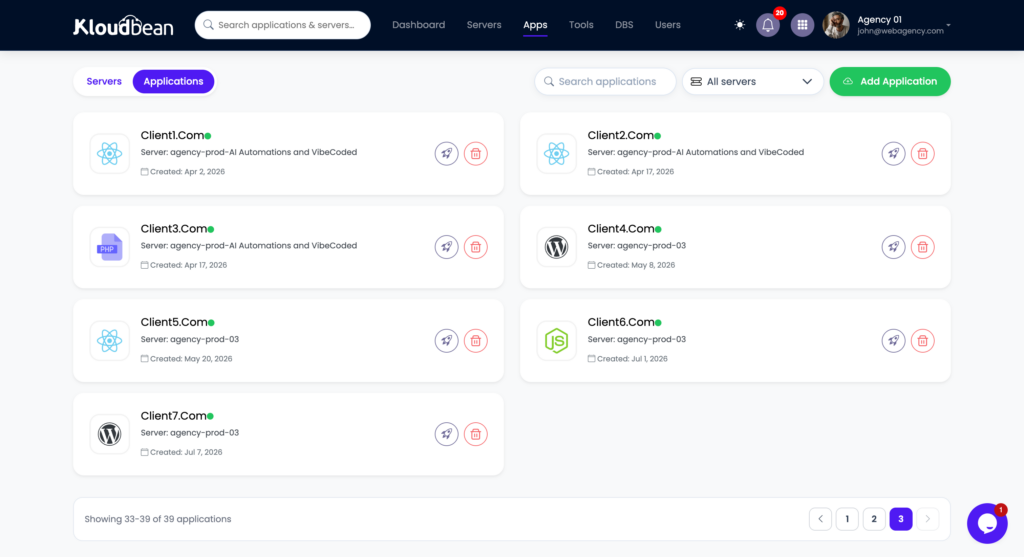
A server’s Applications list showing several client apps running on the one server.
One habit worth building from day one: clear, consistent names — client-acme-wp, client-globex-next — because future-you, staring at twenty apps, will be grateful. Kloudbean’s own multi-app guidance lands in the same place: size the server for the total load, monitor usage across apps, and keep the naming tidy.
When a client outgrows the shared box, you move that one app to its own server and leave the rest untouched. Same console, same bill.
When to split into more servers
Consolidation is a starting point, not a religion. Split when a client’s resource use is consistently crowding the others, when a client needs genuine isolation for security or compliance reasons, or when the blast radius of one shared machine gets bigger than you’re comfortable with. The goal was never “everything on one server forever” it’s the fewest servers you can run well, with the ops off your plate.
Start a client on a managed server and watch the sprawl disappear.
Spin up your first server at kloudbean.com — 3-day free trial, and the first migration is on the house.
FAQ
How many client apps can one server really host?
It depends on the apps, not a magic number. Cached WordPress and static sites are light, so a modest server holds many; busy Node or Laravel apps are heavier, so fewer fit. Watch memory first, keep ~25–30% headroom, and move the heaviest client to its own box when it earns it. Twenty-plus light-to-moderate sites on one well-sized server is realistic.
Is it safe to put multiple clients on the same server?
Yes, when they’re properly isolated each client gets its own system user, web root, process, database, and SSL, so one can’t read or crash another. The remaining shared risk is server-level failure, which you cover with tested per-app backups and by not stacking all your highest-value clients on one machine.
Can I run WordPress and Node/Next apps on the same server?
Yes. Underneath it’s a Linux server running Nginx, Apache, or OpenLiteSpeed with multiple runtimes, so WordPress, Next.js, Laravel, Django, and Node apps can live side by side on one box.
How do backups and restores work per client?
Look for backups you can restore at the individual app and database level, not just whole-server snapshots so you can roll back one client’s site without touching anyone else’s. Daily automated backups are part of Kloudbean’s Premium and Enterprise plans.
Can I white-label this for my agency?
Yes, you can deliver managed hosting under your own brand and turn it into recurring revenue, while Kloudbean runs the infrastructure behind the scenes with unlimited DevOps support.
By Kloudbean · Managed multi-cloud hosting. Build. Deploy. Scale — Faster Than Ever.